
Download BluRay Cover Printer – free disc cover design tool for Windows
Overview – What is BluRay Cover Printer?
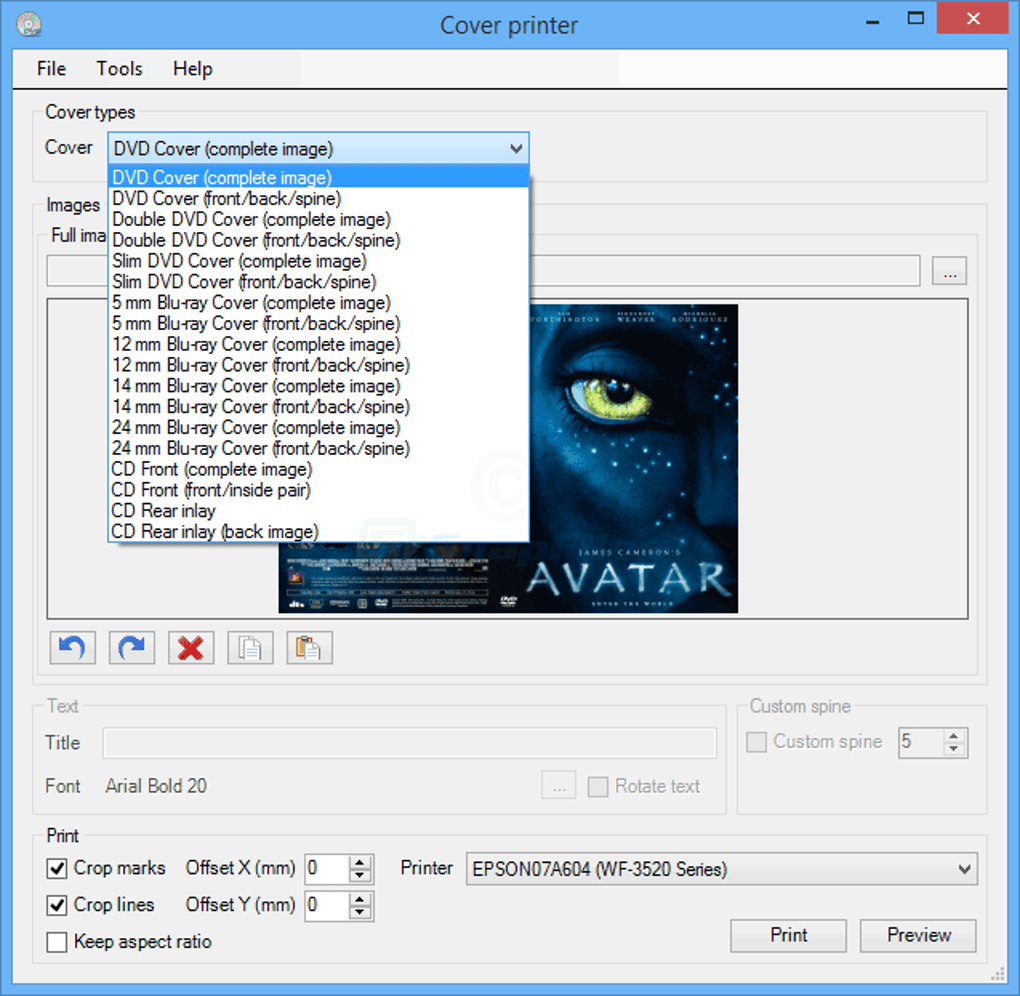
BluRay Cover Printer is a lightweight, completely free Windows utility that lets you create professional‑looking cover inserts for Blu‑ray, DVD, and CD discs without the need for expensive graphic‑design software. Developed by Blurayprinter, the application lives in the Multimedia → Photography category and focuses on speed and simplicity. The core workflow revolves around a drag‑and‑drop canvas where you place a pre‑sized image, select the disc format (Blu‑ray or DVD), and press “Print”. The program instantly sends the layout to any installed printer, producing a ready‑to‑cut cover that fits standard 12 mm and 9 mm spine widths. Because BluRay Cover Printer does not include an image editor, you must size and crop your artwork beforehand using a tool such as GIMP, Paint.NET, or even the built‑in Windows Photos app. This design‑first approach keeps the application lean (under 5 MB) and ensures fast load times even on older PCs.
Key Benefits at a Glance
- Completely free with no hidden fees or trial limitations.
- Dedicated templates for both Blu‑ray and DVD cases.
- One‑click printing directly to any locally installed printer.
- Supports high‑resolution PNG, JPEG, and BMP files.
- Minimal system requirements – runs on Windows 7, 8, 10, and 11.
- Simple drag‑and‑drop interface that requires no prior design experience.
For users who maintain large media libraries, the ability to label each disc with custom artwork speeds up identification and adds a personal touch. The program also integrates nicely with popular disc‑burning suites, allowing you to print covers immediately after the burn process completes. While it lacks advanced editing features like text overlay or barcode generation, the focus on a single, well‑executed function means you spend less time learning the software and more time printing your covers.
Installation, Compatibility & How to Use BluRay Cover Printer
Getting started with BluRay Cover Printer is straightforward. The installer is a small executable (BluRayCoverPrinterSetup.exe) that you download from the official website. Follow these steps to install and begin printing:
- Download the installer: Click the “Download” button on the product page. The file is typically less than 5 MB, making it quick even on slower connections.
- Run the setup: Double‑click the downloaded file. Windows User Account Control (UAC) may prompt you to confirm; click “Yes” to allow the installer to make changes.
- Accept the license agreement: The terms are simple – free for personal use, no redistribution.
- Select installation folder: The default path (
C:\Program Files\BluRayCoverPrinter) works for most users. - Complete the installation: Click “Install” and wait a few seconds. Once finished, you can launch the application from the Start menu or desktop shortcut.
BluRay Cover Printer is built exclusively for Windows. It supports Windows 7, 8, 10, and 11 (both 32‑bit and 64‑bit). The program uses standard Windows printing APIs, so any printer that can print on standard paper sizes (A4, Letter) will work. If you use a label printer or a specialized disc‑cover cutter, ensure the printer driver is installed and set as the default device before printing.
Step‑by‑Step Usage Guide
Once installed, follow these instructions to create and print a cover:
- Prepare your image: Resize your artwork to match the exact dimensions of the target case. For a standard Blu‑ray case, the cover size is 266 mm × 183 mm with a 12 mm spine. For DVD, it’s 184 mm × 129 mm with a 9 mm spine. Use an external editor to crop and resize accordingly.
- Launch BluRay Cover Printer: The main window displays a blank canvas with two radio buttons – “Blu‑ray” and “DVD”. Choose the appropriate format.
- Drag & drop: Drag your prepared image file from Windows Explorer onto the canvas. The program automatically centers the image.
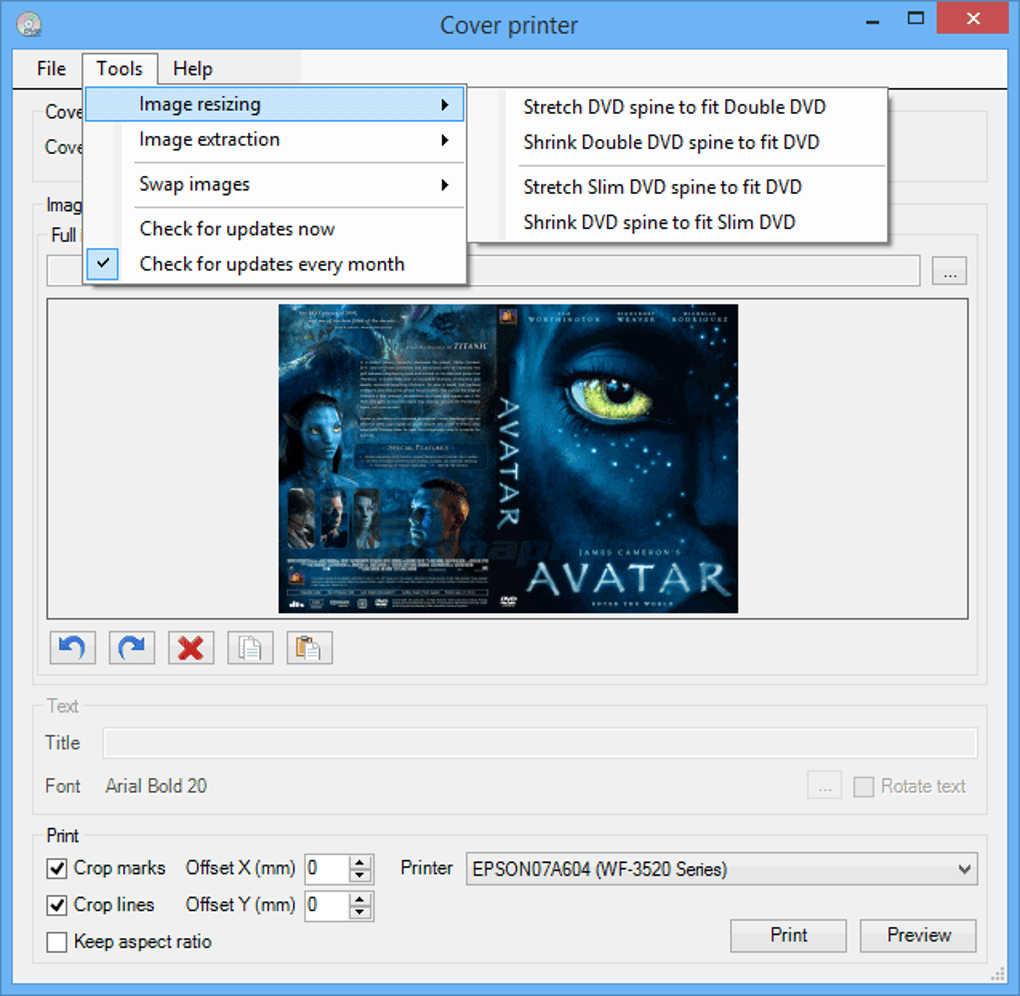
- Preview: A quick preview shows how the cover will look when printed, including spine alignment.
- Print: Click the green “Print” button. In the print dialog, select your printer, paper size, and ensure “Fit to page” is unchecked to maintain exact dimensions.
- Cut & assemble: After printing, cut the cover using a ruler or a precision cutter, then slide it into the disc case.
The entire process from image preparation to printed cover typically takes under two minutes, making BluRay Cover Printer an efficient tool for hobbyists and small media archives alike.
Pros, Cons & Frequently Asked Questions
Pros
- Free and lightweight: No hidden costs, no bloatware, and a tiny installation footprint.
- Intuitive UI: Drag‑and‑drop workflow means even first‑time users can create covers instantly.
- Accurate templates: Built‑in dimensions for Blu‑ray and DVD ensure professional results.
- Broad printer compatibility: Works with any Windows‑compatible printer that handles standard paper sizes.
- Fast printing: Direct print command bypasses extra export steps.
Cons
- No built‑in image editor: Users must resize and crop images beforehand.
- Windows‑only: No native macOS, Linux, Android, or iOS versions.
- Lacks advanced features: No text overlay, barcode generation, or batch processing.
- Limited format support: Only Blu‑ray and DVD cases; CD cover templates are absent.
Frequently Asked Questions
Can I use BluRay Cover Printer with a label printer?
Yes, as long as the label printer is installed in Windows and can handle the paper size you select. You may need to disable “Fit to page” to keep the dimensions exact.
Is there a way to add text to my cover?
BluRay Cover Printer does not include a text tool. You should add any titles or labels in an external editor before dragging the image into the program.
Does the software work on Windows 11?
Yes, the application is fully compatible with Windows 11, as well as Windows 10, 8, and 7.
Can I print multiple covers at once?
The current version only prints one cover per operation. For batch printing you would need to run the program repeatedly or use a macro in your printer driver.
Is there a portable version that runs without installation?
No, BluRay Cover Printer requires installation to register its printer settings with Windows. However, the installer is tiny and can be run on any Windows PC without admin rights (if permitted).
Reviewer Summary: BluRay Cover Printer excels at delivering a free, no‑frills solution for disc‑cover creation. Its simplicity is both its greatest strength and its biggest limitation. Users who need basic covers will love the speed, while power users may outgrow it quickly.
Conclusion – Should You Download BluRay Cover Printer?
If you maintain a personal collection of movies, games, or software and want a quick way to label each disc with custom artwork, BluRay Cover Printer is a solid choice. The program is free, lightweight, and designed specifically for the Windows environment, which means you won’t waste time fighting compatibility issues. Its drag‑and‑drop workflow reduces the learning curve dramatically, allowing you to print professional‑looking covers in seconds. While the lack of an integrated image editor and the absence of macOS or Linux versions may deter some, the core functionality—accurate template sizing and one‑click printing—covers the needs of most hobbyists.
To get started, simply click the download button below, install the tiny setup file, and prepare your images at the recommended dimensions. Within a couple of minutes you’ll have a personalized set of disc covers that not only protect your media but also give it a polished, library‑ready appearance. Don’t let your collection look bland—add a personal touch with BluRay Cover Printer today.







